
-
2026 staff recruitment is open! Check it out and consider applying!
You are using an out of date browser. It may not display this or other websites correctly.
You should upgrade or use an alternative browser.
You should upgrade or use an alternative browser.
compilation
- Thread starter Gubailovo
- Start date
OP
OP

Gubailovo
Well-Known Member
- Joined
- Dec 19, 2013
- Messages
- 412
- Solutions
- 2
- Reaction score
- 71
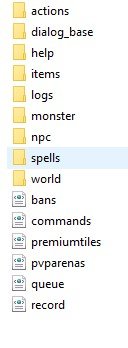
no, it's almost a completely redesigned server.its avesta or something?
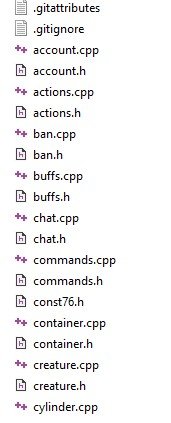
Can I compile it with only the source folder?
Post automatically merged:
there was a lot of talk on otland. about what it is. no one could understand
OP
OP
Gubailovo
Well-Known Member
- Joined
- Dec 19, 2013
- Messages
- 412
- Solutions
- 2
- Reaction score
- 71
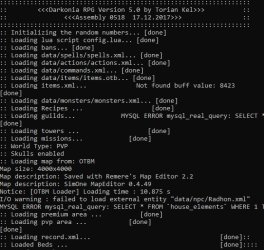
I can not find out the version of TFS
I use a custom server, and there is no mention of the version of TFS. Can you help me determine the version? By scripts or by some files. 7.6

PuszekLDZ
https://tibia74.eu
maybe try that compiling tutorial from avesta
its on VS2010
thats how to start with just a src files
its on VS2010
thats how to start with just a src files
Code:
    Create new project
        click File -> New -> Project...
        select Visual C++ -> General -> Empty Project
        set 'Name' for your project (I'll name it "server")
        set 'Location' for your project (It's "D:\projects" for me)
        leave 'Solution name' same as 'Name' ("server")
        'Create directory' for solution should be checked
    Adding files
        go to 'Location\Name\Solution name' of your project (D:\projects\server\server), and copy there all content of /src/
        in Solution Explorer right click on Header Files -> Add -> Existing item..., right click on Sort by -> Type, select all header files (.h extension), don't forget about the msvc.h and workarounds.h (from 'compiler' folder)
        in Solution Explorer right click on Source Files -> Add -> Existing Item..., select all source files (.cpp extension)
    Setting project up
        go to (in menubar) Project -> Properties
        in the top left corner, set Configuration to 'Release'
        in tree widget on the left, go to Configuration Properties (you should be there anyway)
            General, Platform Toolset should be 'v100', Character Set should be 'Use Multi-Byte Character Set ' , rest leave as default
            C/C++
            General
                click Additional Include Directories, drop down button shall appear, click on it, and in new window add following directories:
                libraries\inc\boost
                libraries\inc\libiconv
                libraries\inc\libxml
                libraries\inc\lua
                libraries\inc\mpir
                libraries\inc\mysql
                libraries\inc\sqlite
                Multi-processor compilation (optional), you can set it to 'Yes', that will speed compilation
            Preprocessor
                Preprocessor definitions, click on it, choose edit, and add (don't add the word 'optional'):
                __USE_OTPCH__
                __USE_MYSQL__
                NDEBUG (optional)
                __USE_SQLITE__ (optional)
                __PROTOCOL_76__ (optional)
                __PROTOCOL_77__ (optional)
                __USE_MINIDUMP__ (optional)
            Precompiled Headers
                set Precompiled Header to 'Use'
                set Precompiled Header File to 'otpch.h'
            Linker
            General
                Additional Library Directories, click dropdown button, edit and add:
                libraries\lib
            Input
                Additional Dependencies, click dropdown button, edit and add:
                libmysql.lib
                libxml2.lib
                lua5.1.lib
                mpir.lib
                sqlite3.lib
        we are done here, press Ok
        in Solution Explorer -> Source Files, right click on optch.cpp -> Properties
            make sure Configuration (top left) is 'Release'
            go to Configuration Properties -> C/C++ -> Precompiled Headers
            set Precompiled Header to 'Create'
            set Precompiled Header File to 'otpch.h'
            press Ok
    Compilation
        in the toolbar (top center) change configuration from 'Debug' to 'Release'
        click Build -> Build Solution
        executable will be in Location\Name\Release (D:\projects\server\Release)
OP
OP
Gubailovo
Well-Known Member
- Joined
- Dec 19, 2013
- Messages
- 412
- Solutions
- 2
- Reaction score
- 71
to understand this tutorial i need to study some more tutorials.maybe try that compiling tutorial from avesta
its on VS2010
thats how to start with just a src files
Code:Create new project click File -> New -> Project... select Visual C++ -> General -> Empty Project set 'Name' for your project (I'll name it "server") set 'Location' for your project (It's "D:\projects" for me) leave 'Solution name' same as 'Name' ("server") 'Create directory' for solution should be checked Adding files go to 'Location\Name\Solution name' of your project (D:\projects\server\server), and copy there all content of /src/ in Solution Explorer right click on Header Files -> Add -> Existing item..., right click on Sort by -> Type, select all header files (.h extension), don't forget about the msvc.h and workarounds.h (from 'compiler' folder) in Solution Explorer right click on Source Files -> Add -> Existing Item..., select all source files (.cpp extension) Setting project up go to (in menubar) Project -> Properties in the top left corner, set Configuration to 'Release' in tree widget on the left, go to Configuration Properties (you should be there anyway) General, Platform Toolset should be 'v100', Character Set should be 'Use Multi-Byte Character Set ' , rest leave as default C/C++ General click Additional Include Directories, drop down button shall appear, click on it, and in new window add following directories: libraries\inc\boost libraries\inc\libiconv libraries\inc\libxml libraries\inc\lua libraries\inc\mpir libraries\inc\mysql libraries\inc\sqlite Multi-processor compilation (optional), you can set it to 'Yes', that will speed compilation Preprocessor Preprocessor definitions, click on it, choose edit, and add (don't add the word 'optional'): __USE_OTPCH__ __USE_MYSQL__ NDEBUG (optional) __USE_SQLITE__ (optional) __PROTOCOL_76__ (optional) __PROTOCOL_77__ (optional) __USE_MINIDUMP__ (optional) Precompiled Headers set Precompiled Header to 'Use' set Precompiled Header File to 'otpch.h' Linker General Additional Library Directories, click dropdown button, edit and add: libraries\lib Input Additional Dependencies, click dropdown button, edit and add: libmysql.lib libxml2.lib lua5.1.lib mpir.lib sqlite3.lib we are done here, press Ok in Solution Explorer -> Source Files, right click on optch.cpp -> Properties make sure Configuration (top left) is 'Release' go to Configuration Properties -> C/C++ -> Precompiled Headers set Precompiled Header to 'Create' set Precompiled Header File to 'otpch.h' press Ok Compilation in the toolbar (top center) change configuration from 'Debug' to 'Release' click Build -> Build Solution executable will be in Location\Name\Release (D:\projects\server\Release)
could you provide links to detailed information?
everything related to server and client compilation
PuszekLDZ
https://tibia74.eu
to understand this tutorial i need to study some more tutorials.
could you provide links to detailed information?
everything related to server and client compilation
stop on time, when You got a project done.
not to folder in projects
header - add all files .h
source - add all files .cpp
if You got in src folder include, remember to add it to folders too