• There is NO official Otland's Discord server and NO official Otland's server list. The Otland's Staff does not manage any Discord server or server list. Moderators or administrator of any Discord server or server lists have NO connection to the Otland's Staff. Do not get scammed!
  • 2026 staff recruitment is open! Check it out and consider applying!

How much would it cost to get help setting up a private 7.4 server?

Kresh170

Well-Known Member
Joined
Oct 31, 2009
Messages
185
Reaction score
76
So basically I know nothing about setting up servers and I am considering to pay someone to help me setup a offline server and to teach me the basics of editing the server.

Could someone tell me how much is a fair price for such a simple service?
 
This may be helpful. Just takes time. Patience is all you need.

 
This may be helpful. Just takes time. Patience is all you need.

I have tried and came to the realization that I have too much going on in my life so this is an good example of when pay to win is actually a good choice in real life xd
 
If we are talking basic tfs, db, and web setup, I am sure you will find people for ~50 USD.
Teaching is a different thing, you will probably get charged by the hour.
Some people or many do it for free 50 usd just to setup basics??? This is unreal.
 
Neither must pay very well if 2 big pizzas are something surreal for your broke ass :D
Why dont you say im not that hungry for money same as you and you don't know me to call me a "broke ass" there is nothing even to judge that I'm broke.I love to help people in my free time it shouldn't be bothering you? Or you lost a client because someone done it for free?
 
Why dont you say im not that hungry for money same as you and you don't know me to call me a "broke ass" there is nothing even to judge that I'm broke.I love to help people in my free time it shouldn't be bothering you? Or you lost a client because someone done it for free?
Do you think I volunteered for the job because, after OP asked, I said how much it costs approximately?
That's another giveaway - you are not very smart.
Stop virtue signalling, your rent is due.
 
50$ "approximately" to setup an offline server and calling me not smart.
Hell, I am sure you will find someone who will reject 500$ for that, thus approximation.

I love to help people in my free time
1763861842160.webp
Your lack of understanding of how prices are formed and this whole dispute - not only proves that, but also shows that you barely manage to breathe and type, let alone think, brother.
Stay healthy.
 
Last edited:
I have tried and came to the realization that I have too much going on in my life so this is an good example of when pay to win is actually a good choice in real life xd
You should consider that trying to buy time now for the easiest stuff will waste your time and money later, also choosing 7.4 as a starting point is pretty rough, you should focus on just getting any (modern) server running locally and start fooling around. There's no public 7.4 server and it's a huge time investment to start creating one properly.

Also worth checking out the support board and/or some of the discords, plenty of people are around to help for free especially if its as mundane as this, if you have a genuine interest and willingness then people do not mind helping and teaching for free
 
some of the discords, plenty of people…
… ready to scam you for less.
Beware of the discords, people use them to break rules, sell you halfassed shit they couldn’t here.

I agree with doing everything yourself, I myself have had already 500 players online peak when, for the first time, I paid someone to do something for me, but I am starting to feel you guys collectively have less IQ than average pidgeon - OP explicitly asked for “fair price” and you keep coming with “free is fair”, while there is noone up to do it.
No, it’s not fair, if service implies “price”, how can it be fair if one of the parties receives nothing lol

Your problem is you are rarely the party delivering, usually the party that is trying to leech, thus your perception is biased.
 
Last edited:
So basically I know nothing about setting up servers and I am considering to pay someone to help me setup a offline server and to teach me the basics of editing the server.

Could someone tell me how much is a fair price for such a simple service?
I wrote this quickly, bare with me!

Setting up a local environment is really simple, but how documentations are written in general makes it look harder than it actually is, they just go into detail. Any technical tutorial will have lots of text but don't feel overwhelmed, once you know how, I promise you, you wouldn't even give someone 5 dollars to teach you how to setup your server.

All you need are two things for local (windows) hosting:

1# ROUTER ACCESS
You need to be able to login to your router. If you've never accessed it before,
passwords are often blank with username "admin".

To find your router's IP address:
  • Open Command Prompt
  • Type: ipconfig /all
  • Look for "Default Gateway" - this is your router's IP address
  • Enter this IP in your browser URL (often something like 192.168.178.1 or 192.168.1.1)

2# WEB SERVER SOFTWARE
Choose one of the following:
  • XAMPP: Good for localhost development
  • Uniform Server: Highly recommended if opening to the public
(XAMPP needs additional configuration to make it more secure, which many
people forget to set. For local hosting only, it shouldn't matter much.)

If you plan to just host locally to develop, use either one.

How-to-do
STEP 1: INSTALL XAMPP

Download and install XAMPP from the official website.
(We will be using XAMPP for this example)

1763835954735.webp
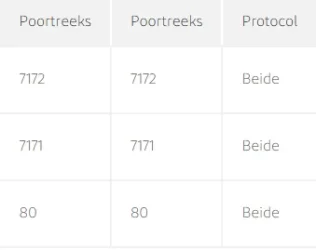
Beide (dutch) = Both

STEP 2: OPEN PORTS IN YOUR ROUTER
Open the following ports in your router:
  • Port 7171 (Login Protocol Port)
  • Port 7172 (Game Protocol Port)
  • Port 80 (HTTP/Web Server)
Note: When configuring ports, you may see an option for "Both" (TCP and UDP).
For Tibia servers, typically only UDP needs to be opened, but opening both
won't cause issues.

1763835913649.webp

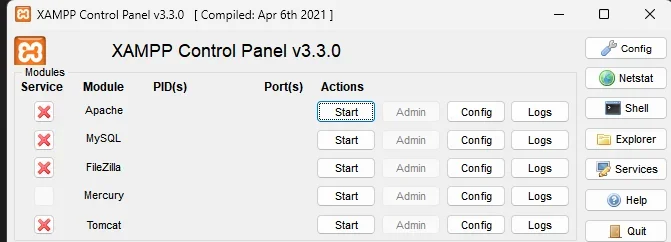
STEP 3: START APACHE AND MYSQL
1. Open XAMPP Control Panel
2. Start Apache
3. Start MySQL

STEP 4: VERIFY INSTALLATION
If two browser pages do not open automatically:
  • Press "Admin" next to Apache - this should bring you to a homepage template
  • Press "Admin" next to MySQL - this should bring you to phpMyAdmin (a database interface with MySQL columns and tables)

1763836564711.webp
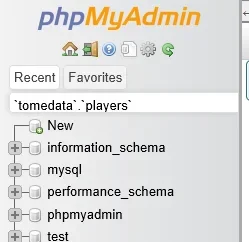
STEP 5: CREATE A NEW DATABASE
1. In phpMyAdmin, click "New" on the left sidebar
2. Create a new database (e.g., name it "test" or your server name)
3. Click "Create"

1763910956065.webp

STEP 6: IMPORT DATABASE SCHEMA
1. In phpMyAdmin, click on your newly created database
2. Click on the top menu: "Import"
3. Click "Choose File" and select schema.sql from your TFS folder
4. Click "Go" to import the database entries

This will import all the needed database tables and structure for your server.

STEP 7: INSTALL WEBSITE (MyAAC)
You need a website so you can create accounts and manage your server.

1. Download MyAAC from: Releases · slawkens/myaac (https://github.com/slawkens/myaac/releases)
(Download the most recent version)

2. Navigate to your XAMPP installation directory
(Usually: C:\xampp\htdocs)

3. Open the HTDOCS folder and EMPTY IT completely

4. Extract the MyAAC ZIP file
- Extract the CONTENTS of the myaac folder (not the folder itself)
- Copy all extracted files into the HTDOCS folder in your XAMPP installation

STEP 8: CONFIGURE MYAAC
1. Open your browser and type: localhost or go to 127.0.0.1
This will bring you to the Installation Page of MyAAC

2. Follow the installation wizard step by step:
- Enter your IP address in a text file (as instructed)
- Set your server path
- Complete all required fields

3. After installation is complete, REMOVE the "install" folder from your
HTDOCS directory for security

STEP 9: CONFIGURE SERVER (config.lua)
Open config.lua inside your TFS Server Folder and edit the following settings:

-- Server IP Configuration
ip = "" -- Your public IPv4 address (leave blank for localhost)
bindOnlyGlobalAddress = false
loginProtocolPort = 7171
gameProtocolPort = 7172
statusProtocolPort = 7171

-- MySQL Database Configuration
mysqlHost = "127.0.0.1"
mysqlUser = "root"
mysqlPass = "" -- Leave blank for XAMPP, set "root" for Uniform Server
mysqlDatabase = "NAMEOFYOURDATABASE" -- Replace with your database name from Step 5
mysqlPort = 3306
mysqlSock = ""

IMPORTANT: Replace "NAMEOFYOURDATABASE" with the actual name of the database
you created in Step 5.

STEP 10: START YOUR SERVER
1. Make sure Apache and MySQL are running in XAMPP
2. Restart Apache/MySQL if needed
3. Run your server executable (theforgottenserver-x64.exe)
4. You should now be able to:
- Create accounts via the website (localhost)
- Login with OTClient or your preferred client
- Connect to your local server

P.S. If using OTClient (prefered) just edit init.lua to configure OTC to connect to localhost/127.0.0.1)

 
I wrote this quickly, bare with me!

Setting up a local environment is really simple, but how documentations are written in general makes it look harder than it actually is, they just go into detail. Any technical tutorial will have lots of text but don't feel overwhelmed, once you know how, I promise you, you wouldn't even give someone 5 dollars to teach you how to setup your server.

All you need are two things for local (windows) hosting:

1# ROUTER ACCESS
You need to be able to login to your router. If you've never accessed it before,
passwords are often blank with username "admin".

To find your router's IP address:
  • Open Command Prompt
  • Type: ipconfig /all
  • Look for "Default Gateway" - this is your router's IP address
  • Enter this IP in your browser URL (often something like 192.168.178.1 or 192.168.1.1)

2# WEB SERVER SOFTWARE
Choose one of the following:
  • XAMPP: Good for localhost development
  • Uniform Server: Highly recommended if opening to the public
(XAMPP needs additional configuration to make it more secure, which many
people forget to set. For local hosting only, it shouldn't matter much.)

If you plan to just host locally to develop, use either one.

How-to-do
STEP 1: INSTALL XAMPP

Download and install XAMPP from the official website.
(We will be using XAMPP for this example)

View attachment 96175
Beide (dutch) = Both

STEP 2: OPEN PORTS IN YOUR ROUTER
Open the following ports in your router:
  • Port 7171 (Login Protocol Port)
  • Port 7172 (Game Protocol Port)
  • Port 80 (HTTP/Web Server)
Note: When configuring ports, you may see an option for "Both" (TCP and UDP).
For Tibia servers, typically only UDP needs to be opened, but opening both
won't cause issues.

View attachment 96174

STEP 3: START APACHE AND MYSQL
1. Open XAMPP Control Panel
2. Start Apache
3. Start MySQL

STEP 4: VERIFY INSTALLATION
If two browser pages do not open automatically:
  • Press "Admin" next to Apache - this should bring you to a homepage template
  • Press "Admin" next to MySQL - this should bring you to phpMyAdmin (a database interface with MySQL columns and tables)

View attachment 96176
STEP 5: CREATE A NEW DATABASE
1. In phpMyAdmin, click "New" on the left sidebar
2. Create a new database (e.g., name it "test" or your server name)
3. Click "Create"

View attachment 96193

STEP 6: IMPORT DATABASE SCHEMA
1. In phpMyAdmin, click on your newly created database
2. Click on the top menu: "Import"
3. Click "Choose File" and select schema.sql from your TFS folder
4. Click "Go" to import the database entries

This will import all the needed database tables and structure for your server.

STEP 7: INSTALL WEBSITE (MyAAC)
You need a website so you can create accounts and manage your server.

1. Download MyAAC from: Releases · slawkens/myaac (https://github.com/slawkens/myaac/releases)
(Download the most recent version)

2. Navigate to your XAMPP installation directory
(Usually: C:\xampp\htdocs)

3. Open the HTDOCS folder and EMPTY IT completely

4. Extract the MyAAC ZIP file
- Extract the CONTENTS of the myaac folder (not the folder itself)
- Copy all extracted files into the HTDOCS folder in your XAMPP installation

STEP 8: CONFIGURE MYAAC
1. Open your browser and type: localhost or go to 127.0.0.1
This will bring you to the Installation Page of MyAAC

2. Follow the installation wizard step by step:
- Enter your IP address in a text file (as instructed)
- Set your server path
- Complete all required fields

3. After installation is complete, REMOVE the "install" folder from your
HTDOCS directory for security

STEP 9: CONFIGURE SERVER (config.lua)
Open config.lua inside your TFS Server Folder and edit the following settings:

-- Server IP Configuration
ip = "" -- Your public IPv4 address (leave blank for localhost)
bindOnlyGlobalAddress = false
loginProtocolPort = 7171
gameProtocolPort = 7172
statusProtocolPort = 7171

-- MySQL Database Configuration
mysqlHost = "127.0.0.1"
mysqlUser = "root"
mysqlPass = "" -- Leave blank for XAMPP, set "root" for Uniform Server
mysqlDatabase = "NAMEOFYOURDATABASE" -- Replace with your database name from Step 5
mysqlPort = 3306
mysqlSock = ""

IMPORTANT: Replace "NAMEOFYOURDATABASE" with the actual name of the database
you created in Step 5.

STEP 10: START YOUR SERVER
1. Make sure Apache and MySQL are running in XAMPP
2. Restart Apache/MySQL if needed
3. Run your server executable (theforgottenserver-x64.exe)
4. You should now be able to:
- Create accounts via the website (localhost)
- Login with OTClient or your preferred client
- Connect to your local server

P.S. If using OTClient (prefered) just edit init.lua to configure OTC to connect to localhost/127.0.0.1)
Two things - you dont have to open the ports on your router to host on localhost.
Also, XAMPP is outdated as fuck, it corrupted my db serveral times, while UniServer seems as easy to manage and in the last 6 years I've been using it daily, and never had an issue.
 
One thing - you dont have to open the ports on your router.
Also, XAMPP is outdated as fuck, it corrupted my db serveral times, while UniServer seems as easy to manage and in the last 6 years I've been using it daily, and never had an issue.

No worries, I already saw you will guide him through Discord, fantastic!
 
Back
Top