

When you try to run GUI app (ex. OTClient) in Linux terminal (VPS/dedic), you get errors about 'no display found' and it fails to start.
To fix this problem, you can use X11 protocol to connect from Windows/Linux to server and stream this app window.
In this tutorial I will setup it on VPS server with Ubuntu 22.04, but it works similar on every Linux distribution.
How to setup it on server
All you got to do is to install
How to connect from Linux desktop
If you are running Linux desktop at home, it's super easy. You just have to add
How to connect from Windows
If you are running Windows at home, you have to install X11 server and configure it in Putty, to make it work.
Install Xserver ex. https://sourceforge.net/projects/vcxsrv/files/latest/download
1. Before you start Putty, you got to start XLauncher (X11 server). Press "Windows" key on keyboard and type
2. Leave all options default (click Next -> Next -> Next -> Finish)

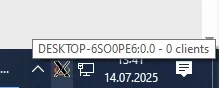
3. On bar move mouse cursor above X11 server running, it will show your server name (ex. on screenshot it's
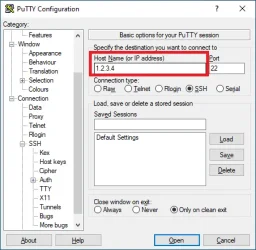
4. Launch Putty and set your server IP:
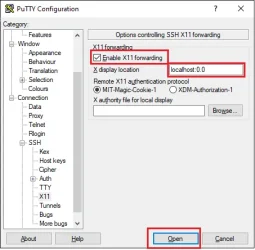
5. Edit
Test if it works
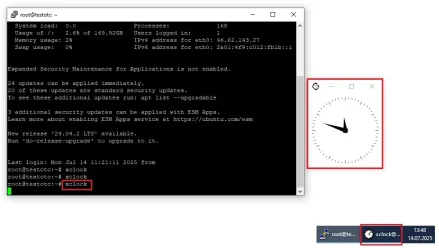
To test, if it works, you can install and run
To run:
It should appear as new window in Windows/Linux:
To fix this problem, you can use X11 protocol to connect from Windows/Linux to server and stream this app window.
In this tutorial I will setup it on VPS server with Ubuntu 22.04, but it works similar on every Linux distribution.
How to setup it on server
All you got to do is to install
xauth:
Code:
sudo apt install -y xauthHow to connect from Linux desktop
If you are running Linux desktop at home, it's super easy. You just have to add
-X parameter to ssh command, when you connect to server ex.:
Code:
ssh -X [email protected]How to connect from Windows
If you are running Windows at home, you have to install X11 server and configure it in Putty, to make it work.
Install Xserver ex. https://sourceforge.net/projects/vcxsrv/files/latest/download
1. Before you start Putty, you got to start XLauncher (X11 server). Press "Windows" key on keyboard and type
xlau, it will find XLauncher app2. Leave all options default (click Next -> Next -> Next -> Finish)
3. On bar move mouse cursor above X11 server running, it will show your server name (ex. on screenshot it's
0.0):4. Launch Putty and set your server IP:
5. Edit
Connection -> SSH ->X11 and connect- enable `Enable X11 forwarding' checkbox
- set
X display locationtolocalhost:and your X11 server name ex.localhost:0.0 - press
Open
Test if it works
To test, if it works, you can install and run
xclock app in terminal:xclock is clock app with GUI. It's part of package x11-apps:
Code:
sudo apt install -y x11-apps
Code:
xclock
Last edited:

