• There is NO official Otland's Discord server and NO official Otland's server list. The Otland's Staff does not manage any Discord server or server list. Moderators or administrator of any Discord server or server lists have NO connection to the Otland's Staff. Do not get scammed!
  • 2026 staff recruitment is open! Check it out and consider applying!

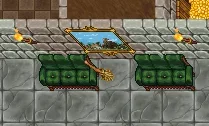
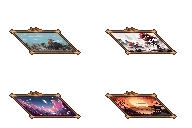
How to convert a large pixel image to a wall painting?

Slikeer

Advanced OT User
Joined
Jul 28, 2016
Messages
82
Reaction score
199
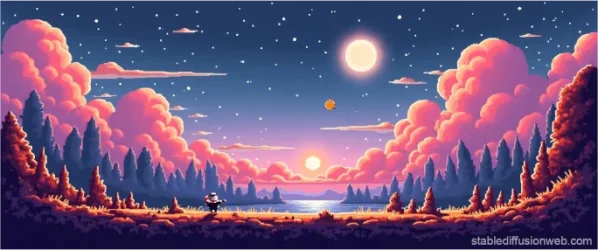
This is the image I will use as a sample to make a wall painting.
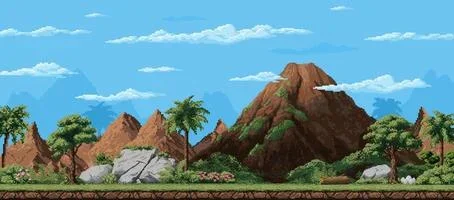
1754956146362.webp

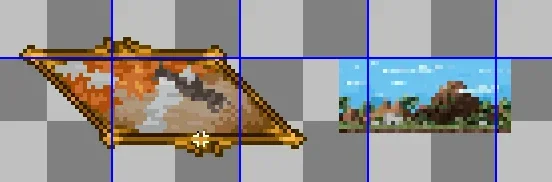
Using any editor, for example I use aseprite, we reduce the size to the desired size.
I reduced it to the size of the wall painting I'm going to edit.
1754956296164.webp

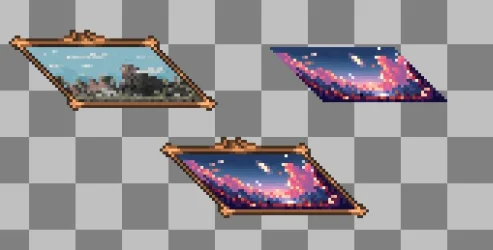
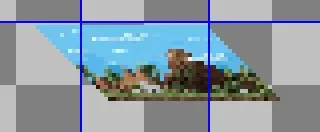
The next step is to move one line at a time until it has the pixel shape of the wall painting.
1754956344384.webp

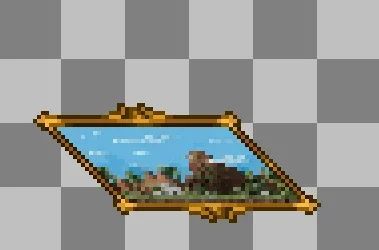
Then we mount the image on top of the frame and this is how it would look.
1754956445210.webp

1754956600539.webp
Post automatically merged:

Another example:

1754956982234.webp

1754957032667.webp
Post automatically merged:

1754957166607.webp
Post automatically merged:

Post automatically merged:

cuadros.webp
Post automatically merged:

Sprites for use
 

Attachments

Last edited:
There's a way to do it faster than moving one line at a time.
At Paint, press Ctrl + W, set horizontal distortion to -45 (You can do that on other softwares with other tools too)

1755127733911-webp.94298
 
There's a way to do it faster than moving one line at a time.
At Paint, press Ctrl + W, set horizontal distortion to -45 (You can do that on other softwares with other tools too)

1755127733911-webp.94298
Hi, yes, exactly, you're absolutely right, but as you say, I use other programs. I normally use Aseprite and GIMP, although I often forget to use the distortion tool in GIMP. xD
 
I normally use Aseprite
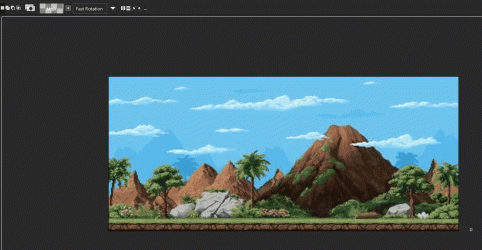
1. Open/paste image
2. Select it either with Rectangular Marquee Tool (M) or select all with CTRL + A
3. CTRL + T to enable Transform
4. Scale it down
5. At the top bar next to R: in the second box with 0, set it to 45 (for side view 90 and -45)

Aseprite_n3NqSD82ne.gif
 
Last edited:
1. Open/paste image
2. Select it either with Rectangular Marquee Tool (M) or select all with CTRL + A
3. CTRL + T to enable Transform
4. Scale it down
5. At the top bar next to R: in the second box with 0, set it to 45 (for side view 90 and -45)

View attachment 94305
Great bro, you always learn something new.
 
Now add a feature so that when you right-click ("use") the wall painting, it opens up a window with the image in larger resolution with the ability to zoom and pan around! :)
xD that would be good although easy in otclient, but it would be a good idea
 
Back
Top