

AlbesJourney
Active Member
- Joined
- Jun 22, 2026
- Messages
- 6
- Reaction score
- 30
Earlier this week I released my game server for Tibia version alpha 1.03 from Feb 08 1997.
See the topic about the game server on OTLand here, and the Github repository here.
It's an open source project and includes a functioning game server, the Tibia 1.03 game client, and more.
Anyway, this topic is not about that. Now let's talk about setting up a free VPS - with no credit card required.
I had so much fun playing on the server locally that I decided to put it online and allow other people to join in. So I started looking for ways to do this for free, because I don't like spending money. And it turns out I was able to setup a VPS for free using Github - and it works fine for ~6 hours at a time. Because my Tibia 1.03 game server is so simple and there's no point in having it run forever, I'm fine with it shutting down and restarting every now and then. You can of course follow my steps below to setup a VPS for free for some other purposes.
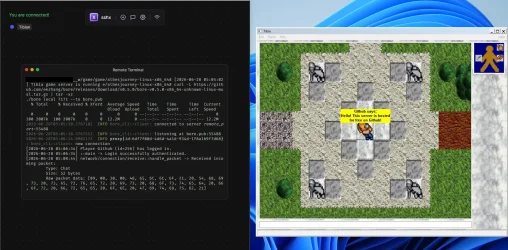
So here's how I managed to host my OT server on Github - completely for free.
Now I have a Tibia server running entirely for free on Github. So in short, all you need is a Github Account (free), setup a Github Actions workflow that launches a Linux instance, then it generates a unique URL to sshx where we can access the terminal. And from there we setup a tunnel using bore, to be able to direct TCP traffic from their port to 7171.
Github Actions only allows you to run it for a few hours at a time. Typically a maximum of 6 hours. So that's why we made the Github Action sleep for exactly that time. That means after 6 hours, it will shutdown and you'll have to do it again. But this is fine for me. You can now also use that VPS for whatever you want basically. In fact, you don't even need to setup the TCP tunnel if you're only doing outbound stuff. Whenever you need to accept inbound connections, you will have to use a tunnel service. If you want to use it as a web server you can instead use Cloudflare Tunnel (they allow HTTPS). Use it for whatever you want. It's not perfect by any means - but it's free!
Above I mentioned how to use the VPS with a TCP tunnel for Tibia. But what if you want it for something else? For example, if you want to use it for a web server running on port 3000. Then we can use Cloudflare Tunnel instead, by running this in the sshx terminal:
As I mentioned, the VPS will be running for 6 hours then it shuts down due to limitations implemented by Github. You can either start it manually by going inside the Github Actions and clicking on "Run workflow" every time you want to run it, or you can schedule it in the "server.yml" file by making it restart every 6 hours. However, you will need to setup the sshx again and the tunnel as well, so it's not fully automated. To schedule it to run every 6 hours change the first few lines to:
Good luck and have fun experimenting with it!
See the topic about the game server on OTLand here, and the Github repository here.
It's an open source project and includes a functioning game server, the Tibia 1.03 game client, and more.
Anyway, this topic is not about that. Now let's talk about setting up a free VPS - with no credit card required.
I had so much fun playing on the server locally that I decided to put it online and allow other people to join in. So I started looking for ways to do this for free, because I don't like spending money. And it turns out I was able to setup a VPS for free using Github - and it works fine for ~6 hours at a time. Because my Tibia 1.03 game server is so simple and there's no point in having it run forever, I'm fine with it shutting down and restarting every now and then. You can of course follow my steps below to setup a VPS for free for some other purposes.
So here's how I managed to host my OT server on Github - completely for free.
- Register an account on Github.com if you haven't already and sign in to it.
- Create a new empty repository. It can be set to private if you'd like. In fact, I recommend doing so.
- Click on "Create a new file" and name it ".github/workflows/server.yml" - Please note the dot in the beginning of the file name!
- Paste the following into the file:
-
YAML:
name: Game Server on: workflow_dispatch: jobs: server: runs-on: ubuntu-latest container: image: debian:bookworm-slim timeout-minutes: 360 steps: - name: Install dependencies run: | apt update >/dev/null 2>&1 apt install -y --no-install-recommends curl ca-certificates procps bash >/dev/null 2>&1 - name: Start sshx session run: | curl -sSf https://sshx.io/get | sh -s run - name: Keep alive (up to 6 hours) run: sleep 21600 - Click "Commit changes..." -> "Commit changes".
- Go to "Actions" and click on "Game Server" on the left side.
- Click on "Run workflow" -> "Run workflow" on the right side.
- Click on "server" on the left side (spinning wheel). Now let it run.
- Copy the link from the output: "https://sshx.io/s/XXXXXXXXXXX".
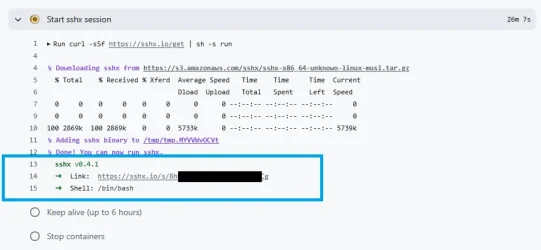
- Now open that link in a new browser tab and you will be taken to sshx, a website that sets up a SSH tunnel between Github and them.
- On the sshx website, click on the "+" at the top to launch a new terminal window. You now have a VPS running and can control it via your browser.
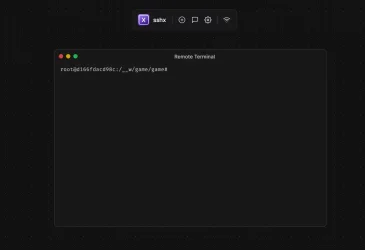
- Now install the following packages in the terminal (copy and paste into sshx):
-
Bash:
apt update apt install -y unzip tar wget curl ssh - To run my Tibia 1.03 game server in the background, run the following (this is where you can launch your Tibia server of choice):
-
Bash:
wget https://github.com/albesjourney/tibia/releases/latest/download/albesjourney-linux-x86_64.zip unzip albesjourney-linux-x86_64.zip cd albesjourney-linux-x86_64/ chmod +x albesjourney ./albesjourney & - Now the most important step. By default Github Actions and sshx blocks TCP connections. So I tried a bunch of different tunnel services, such as Cloudflare. But none of them worked... until I found "bore.pub". Run the following to setup a TCP tunnel for your server. In this case, I use port 7171 which is what most OT servers use:
-
Bash:
curl -L https://github.com/ekzhang/bore/releases/download/v0.5.0/bore-v0.5.0-x86_64-unknown-linux-musl.tar.gz | tar -xz ./bore local 7171 --to bore.pub - Now look at the terminal output and it will tell you your host and port name to connect with. In this case, I have the following:
-
Code:
2026-06-28T05:05:10.576718Z INFO bore_cli::client: connected to server remote_port=55488 2026-06-28T05:05:10.576755Z INFO bore_cli::client: listening at bore.pub:55488 This means my OT server details are: - Host: bore.pub - Port: 55488 Every time you run the command, you will get a new port number from bore.pub! - Now I launched the Tibia 1.03 game client and entered those details:
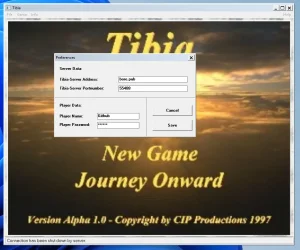
- And I was able to login!
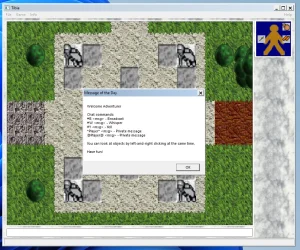
Now I have a Tibia server running entirely for free on Github. So in short, all you need is a Github Account (free), setup a Github Actions workflow that launches a Linux instance, then it generates a unique URL to sshx where we can access the terminal. And from there we setup a tunnel using bore, to be able to direct TCP traffic from their port to 7171.
Github Actions only allows you to run it for a few hours at a time. Typically a maximum of 6 hours. So that's why we made the Github Action sleep for exactly that time. That means after 6 hours, it will shutdown and you'll have to do it again. But this is fine for me. You can now also use that VPS for whatever you want basically. In fact, you don't even need to setup the TCP tunnel if you're only doing outbound stuff. Whenever you need to accept inbound connections, you will have to use a tunnel service. If you want to use it as a web server you can instead use Cloudflare Tunnel (they allow HTTPS). Use it for whatever you want. It's not perfect by any means - but it's free!
Above I mentioned how to use the VPS with a TCP tunnel for Tibia. But what if you want it for something else? For example, if you want to use it for a web server running on port 3000. Then we can use Cloudflare Tunnel instead, by running this in the sshx terminal:
Bash:
# Download Cloudflare Tunnel
curl -L https://github.com/cloudflare/cloudflared/releases/latest/download/cloudflared-linux-amd64 -o cloudflared
chmod +x cloudflared

# Then setup a Cloudflare Tunnel for your web app, running on for example port 3000.
# Note that TCP connections do not work, such as Tibia on port 7171.
# Use bore.pub instead of Cloudflare for that.
./cloudflared tunnel --url http://localhost:3000 2>&1 | grep trycloudflare.com

# Now check the value in the terminal and you will find your Cloudflare Tunnel hostname.
# And the port number will be whatever you chose (in this case 3000).
# Then visit that via your browser, and there you go.
# You can of course also use Github Pages for static sites.
As I mentioned, the VPS will be running for 6 hours then it shuts down due to limitations implemented by Github. You can either start it manually by going inside the Github Actions and clicking on "Run workflow" every time you want to run it, or you can schedule it in the "server.yml" file by making it restart every 6 hours. However, you will need to setup the sshx again and the tunnel as well, so it's not fully automated. To schedule it to run every 6 hours change the first few lines to:
YAML:
name: Game Server
on:
  schedule:
    - cron: '0 */6 * * *'
  workflow_dispatch:
Good luck and have fun experimenting with it!
Last edited:


