
You are using an out of date browser. It may not display this or other websites correctly.
You should upgrade or use an alternative browser.
You should upgrade or use an alternative browser.
How to make a Server in 2020.
- Thread starter Jhanky23
- Start date

Introduction | OTS Guide
 docs.otland.net
From Windows 10 to OTS development machine for dummies
I made this tutorial on clean machine just after installing Windows 10 Pro (64bit) on 2020-02-16. Installing everything took around 1 hour. In this tutorial we will use Visual Studio 2019, not 2017 recommended for TFS compilation. It will work! I used polish version of Windows and installed...
From Windows 10 to OTS development machine for dummies - part 2
5. Install MariaDB, PHP and Apache2 servers Download newest XAMPP for Windows. Link:Download XAMPP (https://www.apachefriends.org/download.html) During installation deselect components we won’t use for OTS development. Start Apache, MySQL and open phpMyAdmin site (database administration...
Thanks for your reply, in the "Setting up your server" section it says:
Click "Choose File" next to "Browse your computer" and locate the "schema.sql" file from TFS sources.
It hasnt said at any point to download these. Where do I get the download from?
Click "Choose File" next to "Browse your computer" and locate the "schema.sql" file from TFS sources.
It hasnt said at any point to download these. Where do I get the download from?
It should exist with any server you download
Which server did you download?
schema.sql otserv.sqlWhich server did you download?
Yes, You need a data-pack to start working with
This is latest TFS server client 10.98 with simple map and main scripts.

 github.com
This is latest TFS server client 10.98 with simple map and main scripts.
GitHub - otland/forgottenserver: A free and open-source MMORPG server emulator written in C++
A free and open-source MMORPG server emulator written in C++ - otland/forgottenserver
github.com
You'll need a website or you can create your own account using SQL queries like those ones.
 otland.net
But OFC a website will make it easier, it's so simple all you need is to install Xampp/Uniform server and copy the files to there as it should be explain in the tutorial above.
otland.net
But OFC a website will make it easier, it's so simple all you need is to install Xampp/Uniform server and copy the files to there as it should be explain in the tutorial above.
God account on TFS 1.3 + premium, via sql
If you are testing a server locally and just looking to create a new account without having to setup an AAC, these 2 sql queries will do that for you. This is just to help you speed up your work flow :) The username and password is 1/1. 1st thing you want to do is create the account, go into...
Last edited:
"Extract the .zip file to your web directory (for example, "C:\UniServZ\www"), which should be empty. Enter the website (if your web directory is UniServZ's, you can do this by clicking "View www" in unicontroller) and wait for MySQL connection error. This will show you the rest of the instructions:"
What do I do here?
I have extracted the file but now it says to enter the website? what website? i dont have my own
What do I do here?
I have extracted the file but now it says to enter the website? what website? i dont have my own
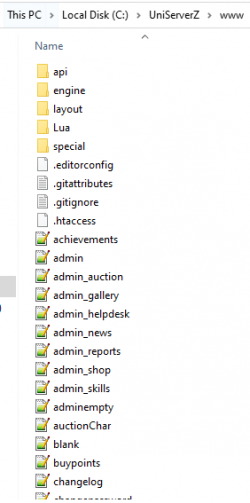
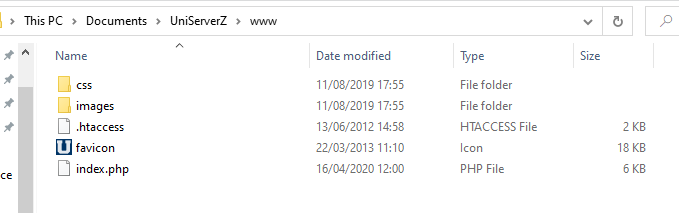
Just empty the folder named www and then extract
ZnoteAAC-master.zip there and it should look close to my above screenshot.
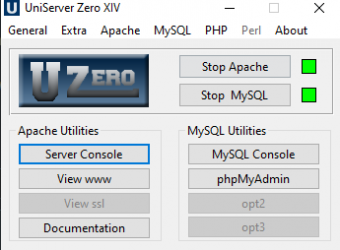
You should have a window similar to this one of your uniserv, Run Apache and MySQL if they are not running and then click on phpMyAdmin it will open in your browser.
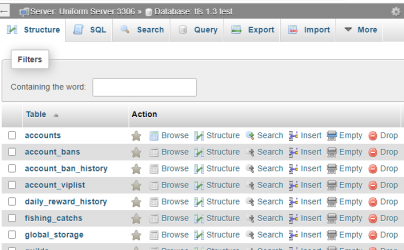
Then go to your database it should look like this, Click on SQL and then paste the whole queries given by Znote's AAC to there and click on Go.
Then go to your database it should look like this, Click on SQL and then paste the whole queries given by Znote's AAC to there and click on Go.
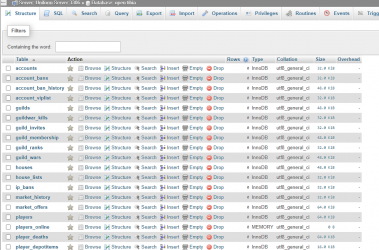
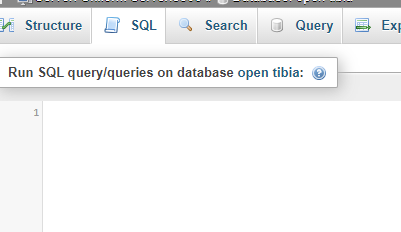

Znote's AAC should have given you a file named
znote_schema.sql, Open it and copy all what's inside then paste them in the SQL box you have above in you screenshot and press go.