• There is NO official Otland's Discord server and NO official Otland's server list. The Otland's Staff does not manage any Discord server or server list. Moderators or administrator of any Discord server or server lists have NO connection to the Otland's Staff. Do not get scammed!
  • 2026 staff recruitment is open! Check it out and consider applying!

Script and tutorial to automate install of "Leaked" 7.70 server

I've been working on dockerization of all this and I think I've managed to make it work :)

This is not as polished as scripts that @SilverFern created but I was able to run this server in minutes on both Linux and Windows machines.

Everything described in the repository's README:


After I've done this I've realized that there is already similar project on GH - I've created mine from scratch I was not aware that something like this exists plus it stated that it won't work on Windows while my solution works just fine!

What's different to VM solution is that I don't have lags anymore and the server is running more smoothly.

There are also scripts to cleanup the DB a little so some noob chars could be deleted and its easier to find accounts to log in because of acc number <-> lvl mapping :)

I hope someone will find it useful.

I'm also learning Rust and I've started rewritting both login and query-managers (login is already done) to it so you can expect an update soon.

Happy Holidays!
 
After I've done this I've realized that there is already similar project on GH - I've created mine from scratch I was not aware that something like this exists plus it stated that it won't work on Windows while my solution works just fine!
Can you provide the url for that similar project?
Thanks for the contribution.
 
Sure it was GitHub - nekiro/dockerized-realots (https://github.com/nekiro/dockerized-realots) by @Nekiro I think 🙂 i’ll add it to the repository read me later as well

This contains things like phpmyadmin, I was developing this mostly for myself and I don’t mind interacting with mysql on the command line so i didn’t add it.

Now i’m rewriting query manager for fun in Rust and I’m thinking to migrate it to sqlite so it’s even more lightweight.
 
How do I create a guild? I've already tried inserting the data into the database, but it didn't work, and there's no reference to guilds in the game folder.
 
Sure it was GitHub - nekiro/dockerized-realots (https://github.com/nekiro/dockerized-realots) by @Nekiro I think 🙂 i’ll add it to the repository read me later as well

This contains things like phpmyadmin, I was developing this mostly for myself and I don’t mind interacting with mysql on the command line so i didn’t add it.

Now i’m rewriting query manager for fun in Rust and I’m thinking to migrate it to sqlite so it’s even more lightweight.
Any status update on the query manager? I'd be happy to give it a try, if it's secure enough to open to the public :)
 
anybody has tutorial to run this directly from windows?
Post automatically merged:

I've been working on dockerization of all this and I think I've managed to make it work :)

This is not as polished as scripts that @SilverFern created but I was able to run this server in minutes on both Linux and Windows machines.

Everything described in the repository's README:


After I've done this I've realized that there is already similar project on GH - I've created mine from scratch I was not aware that something like this exists plus it stated that it won't work on Windows while my solution works just fine!

What's different to VM solution is that I don't have lags anymore and the server is running more smoothly.

There are also scripts to cleanup the DB a little so some noob chars could be deleted and its easier to find accounts to log in because of acc number <-> lvl mapping :)

I hope someone will find it useful.

I'm also learning Rust and I've started rewritting both login and query-managers (login is already done) to it so you can expect an update soon.

Happy Holidays!
you can run it directly in windows?
 
tibia-game.tarball.tar.gz links estão desativados, alguém pode compartilhar?
 
Just want to reply.

Thanks for the tutorial!
Had some issues along the way but finally managed to get it up and running.


Too bad I cannot change the EXP, drop or skill rates.
 
Hello
I have a clear laptop so:
1. have install a new ubuntu 22.04.02
2. make a script install
3. change a files in LIB folder (Denis Libraries)
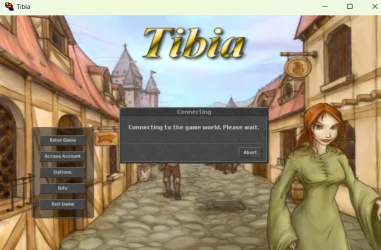
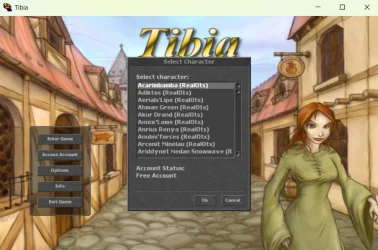
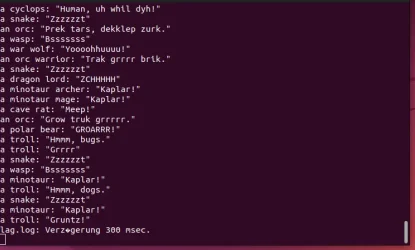
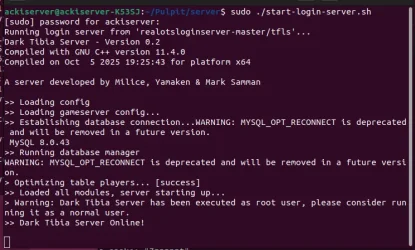
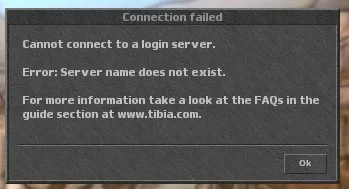
4. Start server and i cant log in to game (another laptop)

what is wrong ??? i try a few days but had fail
 

Attachments

  • Zrzut ekranu 2025-10-05 201739.webp
    Zrzut ekranu 2025-10-05 201739.webp
    64.3 KB · Views: 30 · VirusTotal
  • Zrzut ekranu 2025-10-05 201819.webp
    Zrzut ekranu 2025-10-05 201819.webp
    70.9 KB · Views: 30 · VirusTotal
  • Screenshot from 2025-10-05 20-19-46.webp
    Screenshot from 2025-10-05 20-19-46.webp
    33.1 KB · Views: 25 · VirusTotal
  • Screenshot from 2025-10-05 20-19-58.webp
    Screenshot from 2025-10-05 20-19-58.webp
    49.7 KB · Views: 22 · VirusTotal
  • Screenshot from 2025-10-05 20-20-06.webp
    Screenshot from 2025-10-05 20-20-06.webp
    33.5 KB · Views: 29 · VirusTotal
Done. Work.

Tested on old laptop
If someone can edit first post/tutorial it will be fantastic.
9.10.2025
Install and first startup UBUNTU offline - don't use LAN or WIFI
After finish instalation first open terminal and write:
Code:
sudo dpkg-rekonfigure unattebded-upgrades
and click NO
That will stop all automatic upgrades (auto update make a lot of problems)

Make a instalation like a tutorial writes.
After that go to
/home/game/bin
and replace a file "game" . This file i found on this forum so im not author (now i cant fast find who it was)

To know ip adress write in terminal:
LUA:
ip a
or
Code:
nmcli device show

Tibia770 is original app from cipsoft and you need a change a ip adress in hex-editor after install. (work on Win11)

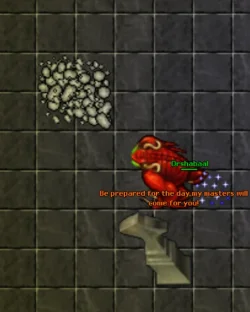
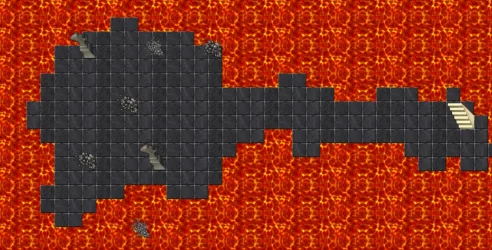
If you replace file moster.db " that is only one change to original. Orshabaal replace two demon in Edron; respown 300s
/home/game/dat"

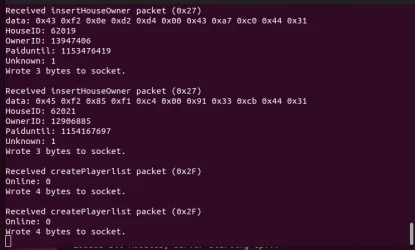
I use a player DataBase from tutorial and change files form member Zeroone that repair a house owner fail to 2030 we have time
/home/game/dat"
[7.7] RealOTS 7.7 Cipsoft files (virgin) (https://otland.net/threads/7-7-realots-7-7-cipsoft-files-virgin.244562/post-2637522)

Server to save game need permision to change so in terminal write:
Sass:
sudo chmod -R 777 /home/game

Last thing is ultimate MS 399 lvl 99 mlvl and EK 399 lvl 100 axe sword. Knight have spells only for his profession but sorc have all (sorc driud paladyn knight). Quest log is clear like EQ and DEPO. Copy all from file EK or MS to player in folder
/home/game/usr

PS:
UBUNTU is here:
https://cdimage.ubuntu.com/releases.../ubuntu-22.04-live-server-amd64+intel-iot.iso
 

Attachments

Last edited:
So after like almost 2 year I wanted to play again on my own server but I am not able to log in to my server. Last time I did everything from this tutorial and it worked with no problem, but even if my server is online I can't join. I tried changing ip with hexedit, ip changer but still nothing works.
 

Attachments

Thanks for reply, although this feels complicated to me, I'm noob in making OTS and programming in Ubuntu, couldn't I just make this server playable offline like localhost 127.0.0.1?
 
Due to a sudden resurgence of people interested in hosting the leaked 7.7 server, I came up with a script to automate all the steps outlined in the excellent tutorial by @Crevasse, and also took the opportunity to make some improvements to work on a more recent version of Ubuntu.

All you need to do is to install Ubuntu in a VM, download the required files and run the scripts.

1. Install Ubuntu 22.04.2 LTS (64 bits) on a virtual machine with VirtualBox​

Simply follow this easy tutorial from Ubuntu, then configure your VM with the recommended settings below:
  • 8 GB of RAM
  • 2 CPU cores
  • 25 GB of disk space
  • Network settings should be configured to use Bridged Adapter, so the VM will get an IP similar to your host PC (e.g.: 192.168.x.x)
Once Ubuntu is up and running, you might want to give sudo permissions to your user, which can be done by running the commands below in a terminal:
Code:
su -
sudo adduser $(whoami) sudo
reboot

2. Download all required files

Go to Crevasse's post and download all attached files. You should have 6 mandatory files and 1 optional:
Also, download the "ot-scripts-xxx.zip" attached to my post and extract all scripts.

3. Install the server​

Make sure all files above are in the same folder on your VM. If you run ls -1, your directory should look like this:
Code:
dennis-libraries.rar
game
install.sh
otserv_schema_data.rar
realotsloginserver-master.zip
realots-query-manager-master.zip
realots-schema-inc-players.zip
start-game-server.sh
start-login-server.sh
start-query-manager.sh
tibia-game.tarball.tar.gz

Run the commands below, which is giving execution permission to all scripts and running the install script:
Code:
sudo chmod +x install.sh start-query-manager.sh start-game-server.sh start-login-server.sh
sudo ./install.sh
Note: the script will ask you to enter a password for the MySQL database user. You can also pass it as an argument to the script, e.g.: sudo ./install.sh mypassword

The installation will take about 5 minutes, depending on your resources and Internet connection.

4. Run all services​

I've included scripts to run the different services required.
Simply run the following commands (in that order) to start up all the services to serve the game, each one in its own terminal:
Code:
sudo ./start-query-manager.sh
sudo ./start-game-server.sh
sudo ./start-login-server.sh

5. Customise the 7.70 client​

In case you don't want to use an IP changer, you can edit the client to point to your VM server.
Code:
test.cipsoft.com
server.tibia.com
server2.tibia.com
tibia1.cipsoft.com
tibia2.cipsoft.com
Note: make sure you replace the remaining characters with 00 bytes. Check this post for more details: Configuration - [Tutorial] Make your custom Tibia Client. (https://otland.net/threads/tutorial-make-your-custom-tibia-client.65/)

6. Log in (and have fun)​

  • On your VM, open the browser and go to http://localhost/phpmyadmin
  • Sign in with the username "otserv" and the password you provided to this install script
  • Click on the "otserv" database, then the "users" table
  • You can use any "login" and "passwd" to log in to an account on the client

Future improvements​

Some ideas for the community to improve this even further:
  • Provide a docker with everything already set up
  • Provide the download link to a VM with everything pre-installed
  • Automate the step of editing the client hex
  • Document known issues
  • When installing packages, use static versions to avoid breaking changings when downloading recent libs
  • Improve security
  • Provide all files in a single zip
  • Automatically download files if they don't exist
  • Turn it into an installer
  • Include a GUI for creating accounts
  • Add instructions to securely set it up for others to join your server
I installed it, unfortunately chmod does not give a response so Im only assuming it worked, but only after I removed the ~ at the end otherwise the install chmod wouldnt work and tell me that it cant find the directory or file. After using sudo ./install.sh, and it being installed. When I try to start the query manager I get following error:
Running query manager from ‘realots-query-manager-master/querymanager’...

./start-query-manager.sh: line 4: ./realots-query-manager-master/querymanager: File or directory not found

And when I look into the folder, there is no querymanager to be found. Whats the issue? I followed your tutorial step by step and thought to have done everything correctly
 
Next one.
PROXMOX 9.1.1 >> VM >> Ubuntu 22.04.5 LTS server
Ubuntu install with default settings !!! SSH connect must will be enabled !!!

I use windows system so:
WinSCP >> connect to your ubuntu serwer and copy all files to folder /home/USERNAME/
file list:

game (folder)
dennis-libraries.rar
istall.sh
otserv_shema_data.rar
players.zip
realotsloginserver-master.zip
realots-query-manager-master.zip
realots-schema-inc-players.zip
start-game-server.sh
start-login-server.sh
start-query-manager.sh
tibia-game.tarball.tar.gz

Next program PuTTY
connect to your server:
1. sudo dpkg-reconfigure unattended-upgrades >> NO
2. sudo apt install zip unzip -y
3. sudo chmod +x install.sh start-query-manager.sh start-game-server.sh
4. sudo ./install.sh >>> durung instalation enter a password for your mysql database
NOW please don't close a PuTTY !! after installation first write:
5. sudo ufw allow 22/tcp
6. sudo chmod -R 777 /home/game
WinSCP
7. delete files game and game.old from folder /home/game/bin ------ copy a new one
8. delete monster.db from folder /home/game/dat ------ copy the new one
9. delete owners.dat from folder /home/game/dat ------ copy the new one
PuTTY
10. Again sudo chmod -R 777 /home/game

11. connect to MySQL database >> ip adress/phpmyadmin
12. click otserv >> import >> use houses.sql
PuTTY
13. first window sudo ./start-query-manager.sh
14. second window sudo ./start-login-server.sh
15. third window sudo ./start-game-server.sh
 

Attachments

Hello guys, total noob in linux here, but I got it online in my VM. My question is how server save works here. There is an automatic server save ruled by the /home/game/bin/reboot-daily file? A certain time?

If I just close the terminals, players dont save, Im closing game first, then query and login (tfls), I tried to find the PIDs checking the ports in terminal, in 7172, game process shows 6 different PID numbers, query at 17778 and login at 7171 shows only one each, I use sudo kill -15 <PID> but game process always reboot, even if I delete /game/save/game.pid, it always comes back, Im only able to launch game process again after restarting ubuntu.

There is a command in game terminal to save or something else I can do?

Inside reboot-daily, line 4, the standard was Base="/game", I changed to Base="/home/game" but still the same, players dont save.

Can someone give me some direction? Thanks!
 
Last edited:
Back
Top